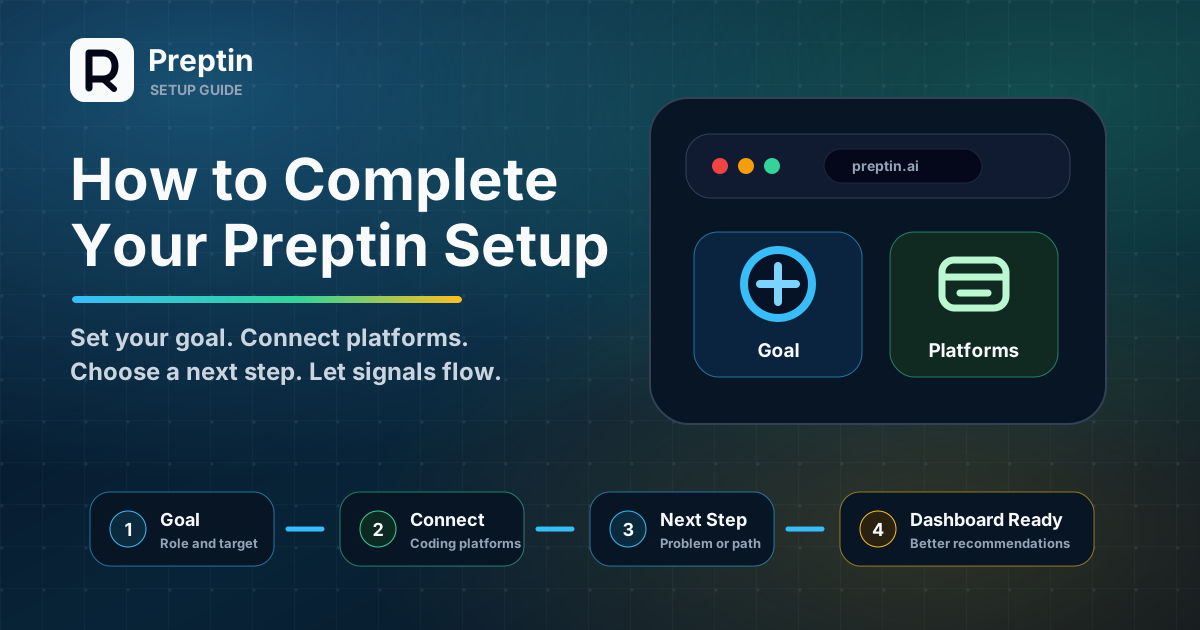
You can open Preptin without setup. But it will feel a little quiet.
The dashboard may not know your target. Recommendations may not know what you have already solved. Revision may not know what should come back later. The product has the pieces, but it needs your first few signals before it can guide you well.
That is what setup is for.
Setup does not mean configuring every possible feature on day one. It means giving Preptin enough context to understand:
- What you are preparing for.
- Where you already practice.
- Whether the browser extension is ready for supported platform flows.
- Which platform activity should count.
- What kind of next step would help you most.
Once those pieces are in place, Preptin starts feeling less generic:
- Preptin can suggest a clearer next action.
- The extension can help with supported verification, capture, and in-browser context.
- Submission sync can turn accepted solves into progress.
- Revision can bring old problems back at the right time.
- The dashboard can show more useful readiness and weak-area signals.
- AI recommendations can point to a next problem, weak topic, prep path, or challenge.
This guide is the calm version of setup: do the few things that matter, skip the optional polish for later, and get to your first useful prep signal.
Your First 10 Minutes
Here is the setup flow in plain English:
| Minute | What You Do | Why It Helps |
|---|---|---|
| 1 | Pick your goal or target context | Preptin knows what kind of prep to optimize for |
| 2-3 | Connect the platform where you solve most | Accepted submissions can become real progress |
| 4 | Install or enable the browser extension if asked | Supported verification and capture flows can work properly |
| 5-6 | Verify the platform if asked | Synced activity becomes more trustworthy |
| 7-8 | Choose a first action | You avoid the blank "what now?" moment |
| 9-10 | Check the dashboard | You see what signal is available and what is still missing |
You do not need a perfect setup. You need a useful first setup.
The Simple Setup Checklist
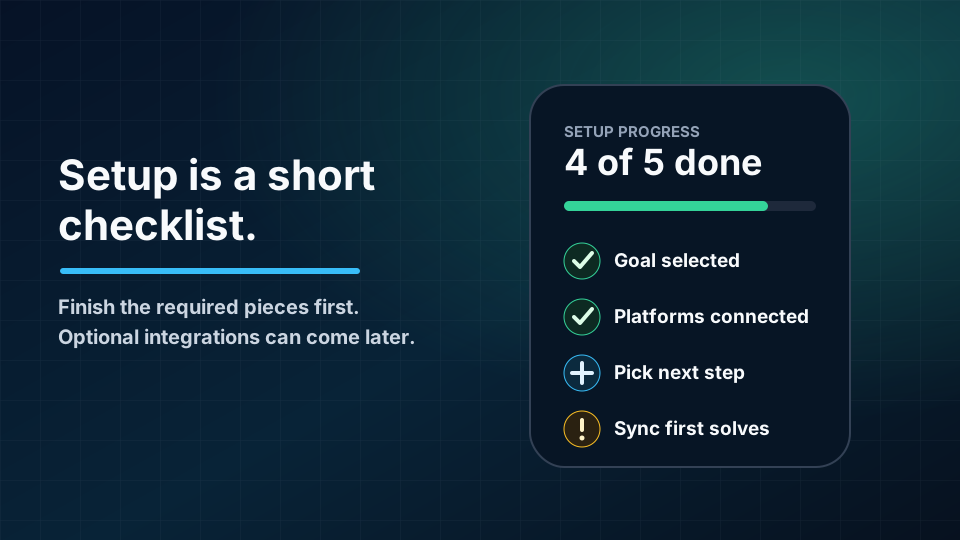
If you are new to Preptin, focus on these steps first:
- Create or sign in to your Preptin account.
- Choose your preparation goal.
- Add your target role or company context.
- Connect the coding platforms you already use.
- Install or enable the Preptin browser extension where setup asks for it.
- Complete platform verification if Preptin asks for it.
- Choose a first next action: a recommended problem, weak topic, Prep Challenge, or Interview Prep Sheet.
- Let Preptin sync accepted submissions.
- Open the dashboard and check your setup progress.
That is enough to begin.
You can always add more platforms, change your target companies, try a sheet, start a challenge, or configure optional features later. The goal of setup is not to make the product perfect immediately. The goal is to give Preptin enough signal to stop feeling generic.
1. Choose Your Preparation Goal
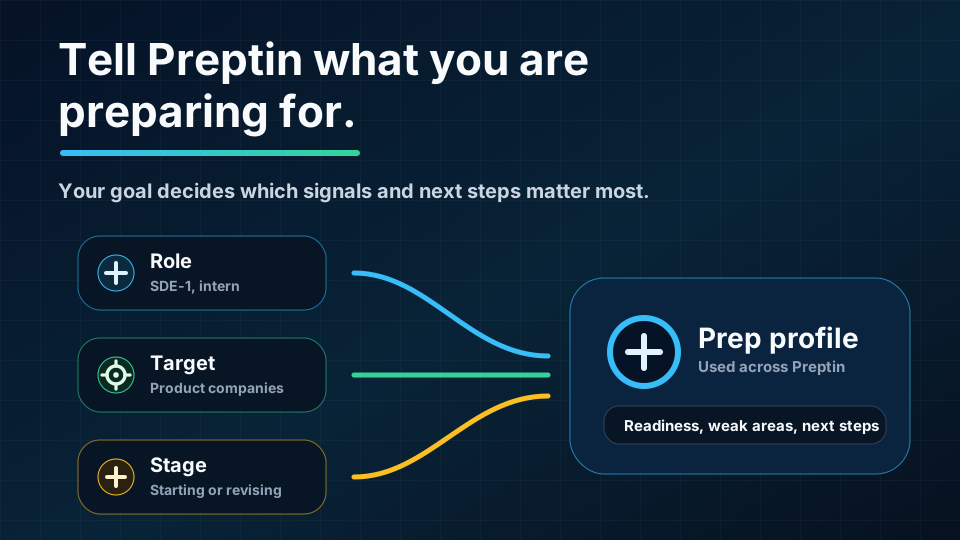
The first important setup step is telling Preptin what you are preparing for.
This may sound basic, but it matters. A student preparing for campus placements, a candidate targeting product-company SDE-1 roles, and someone revising for a company-specific interview do not need the exact same prep plan.
Your goal helps Preptin decide which signals matter most.
For example:
- If you are preparing for campus placements, broad topic coverage may matter more.
- If you are targeting product-company SDE-1 roles, structured DSA coverage and consistency may matter more.
- If you are preparing for a specific company, company-style patterns and readiness may matter more.
- If you are revising before interviews, revision due and weak areas may matter more than starting from scratch.
You do not need a perfect answer. Pick the option closest to your current preparation state.
What If Your Goal Changes Later?
That is fine.
Interview prep changes as you move through the process. You may start with campus placement prep, then focus on product companies, then switch to a specific company sheet before an interview.
Setup is not a permanent label. It is the starting context Preptin uses to organize your first experience.
2. Add Target Role or Company Context
Your target context gives Preptin a sharper understanding of what "ready" means for you.
Without target context, a dashboard can only say generic things like "you solved problems" or "you practiced recently." With target context, Preptin can start asking better questions:
- Are you covering the topics that matter for this role?
- Are your weak areas important for your target company category?
- Are you solving topics and problems that match your goal?
- Are you building proof of work for the kind of opportunity you want?
This does not mean Preptin can guarantee interview outcomes. It means your prep signals become more relevant.
Keep It Practical
Do not spend too much time trying to classify yourself perfectly.
If you are unsure, choose the broadest useful context:
- Product Companies SDE-1
- Campus Placement
- Service Companies
- FAANG+ Advanced
- A company-specific sheet if you already know your target
- A recommendation-led flow if you want Preptin to suggest the next problem or topic
You can refine later.
3. Connect the Platforms Where You Already Solve
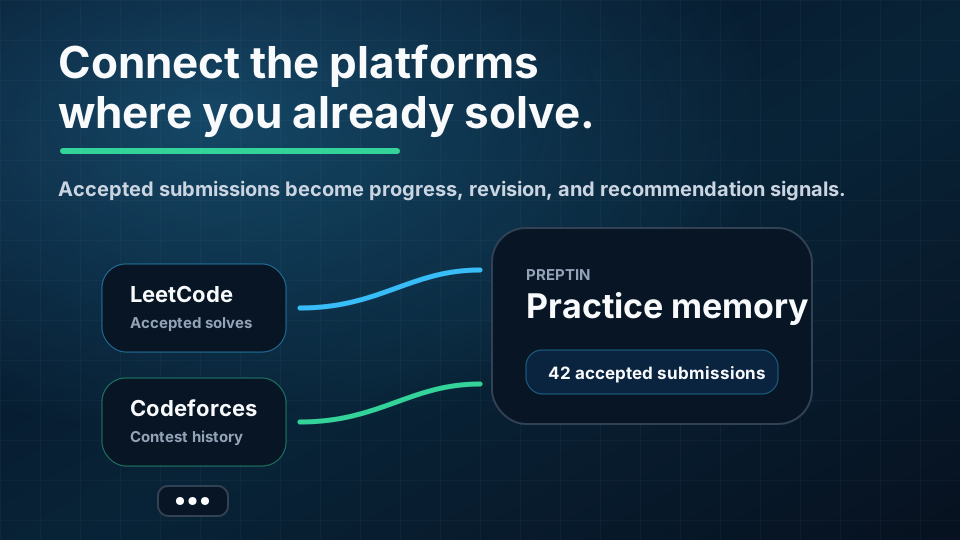
Most candidates do not solve everything in one place.
You may have accepted submissions on LeetCode, Codeforces, CodeChef, GeeksforGeeks, or another platform. That history is valuable, but it is scattered. Preptin setup helps bring those signals into one prep system.
When you connect coding platforms, Preptin can use accepted submissions to understand:
- Which problems you solved.
- Which topics those problems represent.
- Which areas are missing.
- Which problems may need revision.
- Which paths or problems already have partial progress.
- Which recommendations are more likely to help.
This is why platform connection is more than an account setting. It is one of the main ways Preptin learns from your real practice.
Where the Browser Extension Fits
The browser extension is an important part of setup because Preptin needs to work close to the places where you already solve.
Depending on the platform and feature, the extension can help Preptin:
- Complete platform verification from the supported platform page.
- Detect the current coding problem while you practice.
- Support accepted-submission capture where that flow is available.
- Bring revision plans, snippets, and problem context into the browser.
Think of the extension as the bridge between Preptin and your day-to-day coding platform workflow. You are still solving on the platform you already use; the extension helps Preptin understand enough context to keep your prep history useful.
Which Platform Should You Connect First?
Start with the platform where you solve most often.
If most of your recent DSA practice is on LeetCode, connect that first. If you have meaningful contest history on Codeforces, connect that too. If you use multiple platforms, connect them one by one rather than trying to finish everything at once.
The simplest rule is:
Connect the platform that contains the practice history you actually want Preptin to count.
4. Complete Platform Verification When Needed
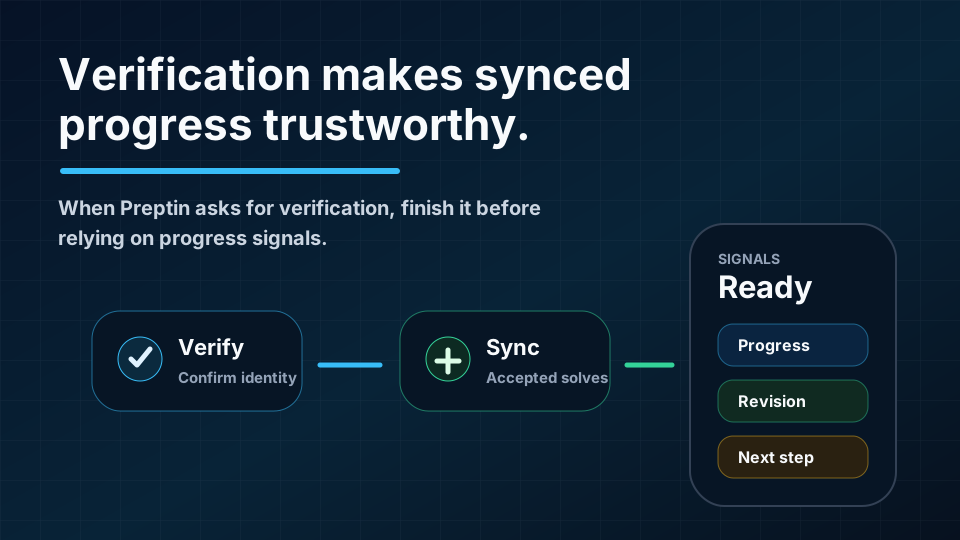
Some platform flows may require verification.
Verification helps Preptin confirm that the connected platform identity belongs to you. This is especially important when progress is used for readiness signals, public profile proof of work, GitHub export, or other features where trust matters.
For some platforms, the browser extension is the part that completes the proof step from the platform page. If setup sends you to a coding-platform profile page, keep the extension installed and signed in so it can complete that handshake.
If Preptin asks you to verify a platform, treat that as a required setup step for that platform.
Verification may involve actions such as:
- Confirming your platform username.
- Using the browser extension flow.
- Following an on-screen verification instruction.
- Waiting for Preptin to confirm the connected account.
The exact flow can vary by platform, but the purpose is the same: make synced progress more trustworthy.
What If Verification Is Stuck?
If verification is not completing, check the simple things first:
- Make sure the platform username is correct.
- Make sure you are logged in to the right coding platform account.
- Make sure the browser extension is installed and enabled if the flow needs it.
- Refresh the Preptin setup page after completing the platform-side step.
- Wait a little if the platform data needs time to sync.
If the platform still does not verify, continue with the rest of setup and come back to it. You can still use other parts of Preptin while resolving the platform issue.
5. Choose Your First Next Action
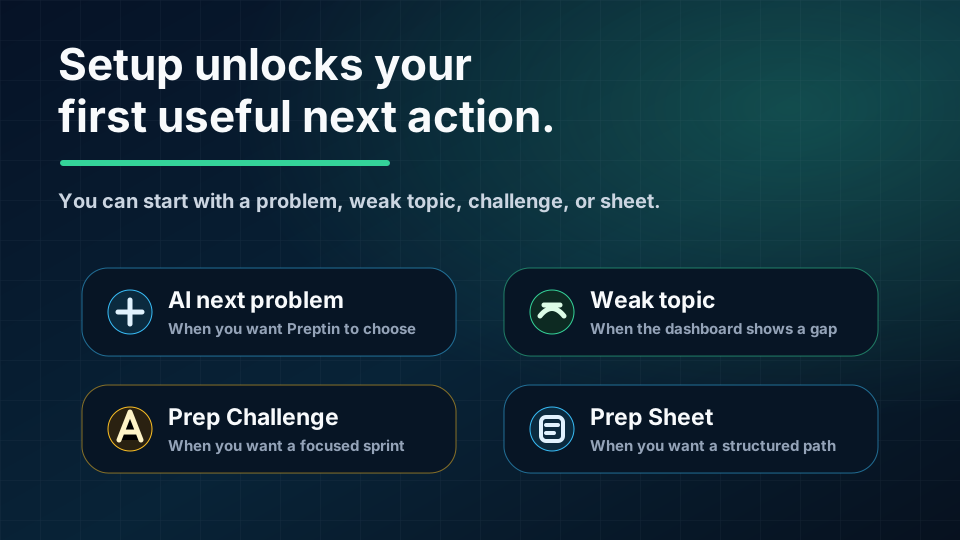
After Preptin understands your goal and platforms, choose one useful action to start with.
That action does not always have to be a sheet.
Preptin can help you begin in a few different ways:
- Follow an AI-recommended next problem.
- Work on a weak topic or weak problem suggestion.
- Start a Prep Challenge if you want a focused practice push.
- Start an Interview Prep Sheet if you want a structured role or company path.
The right choice depends on your current state.
If you feel lost, recommendations or weak-topic suggestions are usually the easiest starting point. If you want a longer path, start a sheet. If you want a short focused sprint, use Prep Challenge.
The point is to avoid random practice. Setup gives Preptin enough context to suggest a next step that fits your goal.
Where Sheets Still Help
Interview Prep Sheets are still useful when you want a structured path.
For example, a sheet can help if you are preparing for Product Companies SDE-1, Campus Placement, Service Companies, FAANG+ Advanced, or a company-specific target such as Amazon, Google, Microsoft, Adobe, Flipkart, Atlassian, Uber, Meta, or Walmart Global Tech.
But a sheet is one route, not the only route. Preptin can also guide you through recommendations, weak areas, revision due, daily practice, and Prep Challenge.
6. Let Accepted Submissions Sync
Setup does not end the moment you connect a platform.
Preptin also needs accepted submissions to sync so it can convert real practice into product signals. Depending on the platform and flow, this may happen quickly or take some time.
Once accepted submissions are available, Preptin can start connecting them to:
- Path progress.
- Topic coverage.
- Revision due.
- Weak areas.
- Recommendations.
- Dashboard activity.
- Public proof-of-work surfaces where enabled.
If your dashboard looks empty right after setup, it may simply need more synced activity.
Manual Progress Still Matters
Not every useful prep action has to come from platform sync.
If you are working through a sheet, challenge, or recommended problem and Preptin supports manual progress states for that path, use them. Sync is strongest when it can capture accepted solves automatically, but manual progress can still help you keep your prep organized.
7. Check the Dashboard After Setup
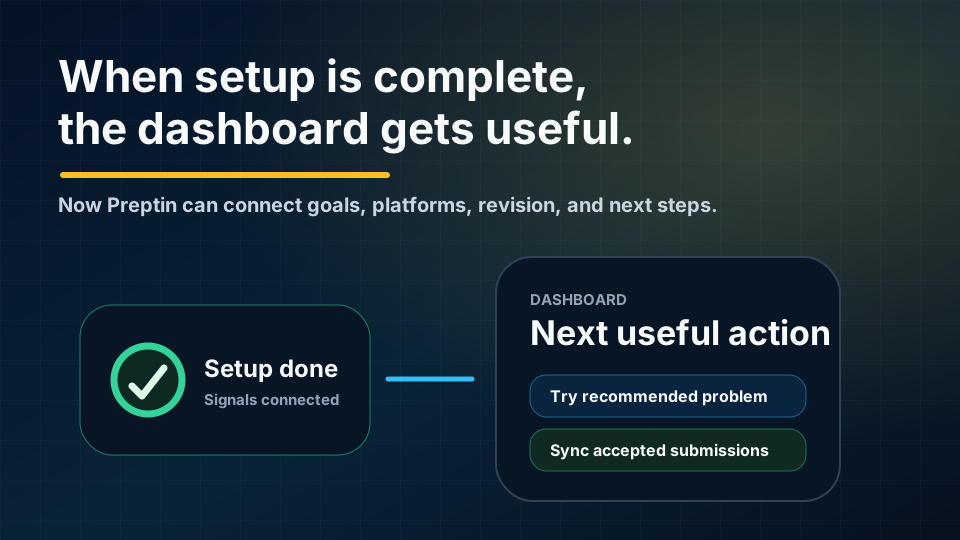
Once setup is complete, open the dashboard.
The dashboard is where your setup starts turning into useful signals. You should begin seeing things like:
- Active path or challenge progress.
- Setup completion state.
- Recent activity.
- Focus topics.
- Revision due.
- Recommendations.
- Readiness signals.
- Target-company context where available.
If the dashboard still looks incomplete, do not panic. It usually means one of three things:
- A setup step is still missing.
- A platform is connected but not verified.
- Accepted submissions have not synced yet.
The dashboard becomes more useful as Preptin receives more signal.
Optional: Connect GitHub Later
GitHub is not required to complete core Preptin setup. You can finish setup, start solving, sync accepted submissions, and use dashboard recommendations without connecting GitHub on day one.
If you want Preptin to help turn accepted solutions into a proof-of-work trail, you can connect the GitHub App later from Settings. After that, you can choose a repository and export accepted solutions when the workflow is available for your plan.
Think of GitHub export as a follow-up workflow, not a setup blocker. First make your goal, platform, verification, and practice signals reliable. Then use GitHub when you are ready to preserve or share selected progress more formally.
What Setup Completion Actually Unlocks
Completing setup is not just about removing a checklist.
It helps Preptin answer better questions:
| Setup Input | What It Helps Preptin Understand | Product Areas It Improves |
|---|---|---|
| Goal | What kind of preparation you need | Recommendations, prep paths, dashboard |
| Target role or company | Which topics and patterns matter most | Readiness, target-company views |
| Connected platforms | Where your real practice history lives | Submission sync, activity, proof of work |
| Verification | Whether synced progress is trustworthy | Public profile, readiness, exports |
| First next action | Whether you start with a sheet, recommendation, weak topic, or challenge | Dashboard, recommendations, progress |
| Accepted submissions | What you have actually solved | Revision, recommendations, weak areas |
The important idea is simple:
Setup turns Preptin from a generic tool into your prep system.
Common Setup Mistakes
Here are a few mistakes to avoid.
Starting Too Many Paths
It is tempting to start every interesting sheet, challenge, and recommendation at once.
Do not do that at the beginning. Pick one useful next action and build momentum. You can add more later when your routine is stable.
Connecting Platforms But Not Verifying
If verification is required and left incomplete, some progress signals may remain limited or less trustworthy.
Finish verification when Preptin asks for it.
Expecting Readiness to Be Perfect Immediately
Readiness is a signal, not magic.
It improves as Preptin sees more setup context, synced submissions, revision history, prep progress, challenge activity, and recommendation outcomes.
Ignoring Revision
Setup is not only about new problems.
Once Preptin knows what you have solved, revision can help older problems come back at the right time. That is how solved problems become recall, not just history.
Frequently Asked Questions
Do I need to complete every setup step before using Preptin?
No. You can explore parts of Preptin before setup is fully complete. But the product becomes much more useful once your goal, platforms, and first next action are in place.
Should I start with a sheet, recommendation, or challenge?
If you want structure, start a sheet. If you want Preptin to choose the next useful problem, follow a recommendation. If you want focused practice, use Prep Challenge. If the dashboard shows a weak topic, start there.
What if I do not have many accepted submissions yet?
That is okay. Connect your platform anyway, then start solving through a recommendation, weak topic, challenge, or sheet. Preptin becomes more useful as your practice history grows.
Why does Preptin need platform verification?
Verification helps confirm that the platform account belongs to you. This makes synced progress more trustworthy, especially when it is used for proof-of-work features.
Can I change my setup later?
Yes. Your goal, target context, connected platforms, active paths, and preferred practice mode can evolve as your prep changes.
Final Takeaway
Preptin setup is not meant to be a long onboarding form.
It is the minimum context Preptin needs to guide you well:
- Your goal gives direction.
- Your target context makes readiness more relevant.
- Your platforms provide practice evidence.
- The extension helps Preptin work inside supported coding-platform flows.
- Verification builds trust.
- Your first next action gives momentum.
- Sync turns accepted solves into progress.
- The dashboard turns those signals into next steps.
Complete setup once, then let your daily practice make the system smarter.